
13 KiB
TrustGraph
Introduction
TrustGraph provides a means to run a pipeline of flexible AI processing components in a flexible means to achieve a processing pipeline.
The processing components are interconnected with a pub/sub engine to make it easier to switch different procesing components in and out, or to construct different kinds of processing. The processing components do things like, decode documents, chunk text, perform embeddings, apply a local SLM/LLM, call an LLM API, and invoke LLM predictions.
The processing showcases Graph RAG algorithms which can be used to produce a knowledge graph from documents, which can then be queried by a Graph RAG query service.
Processing items are executed in containers. Processing can be scaled-up by deploying multiple containers.
Features
- PDF decoding
- Text chunking
- Invocation of LLMs hosted in Ollama
- Invocation of LLMs: Claude, VertexAI and Azure serverless endpoints
- Application of a HuggingFace embeddings algorithm
- Knowledge graph extraction
- Graph edge loading into Cassandra
- Storing embeddings in Milvus
- Embedding query service
- Graph RAG query service
- All procesing integrates with Apache Pulsar
- Containers, so can be deployed using Docker Compose or Kubernetes
- Plug'n'play, switch different LLM modules to suit your LLM options
Architecture
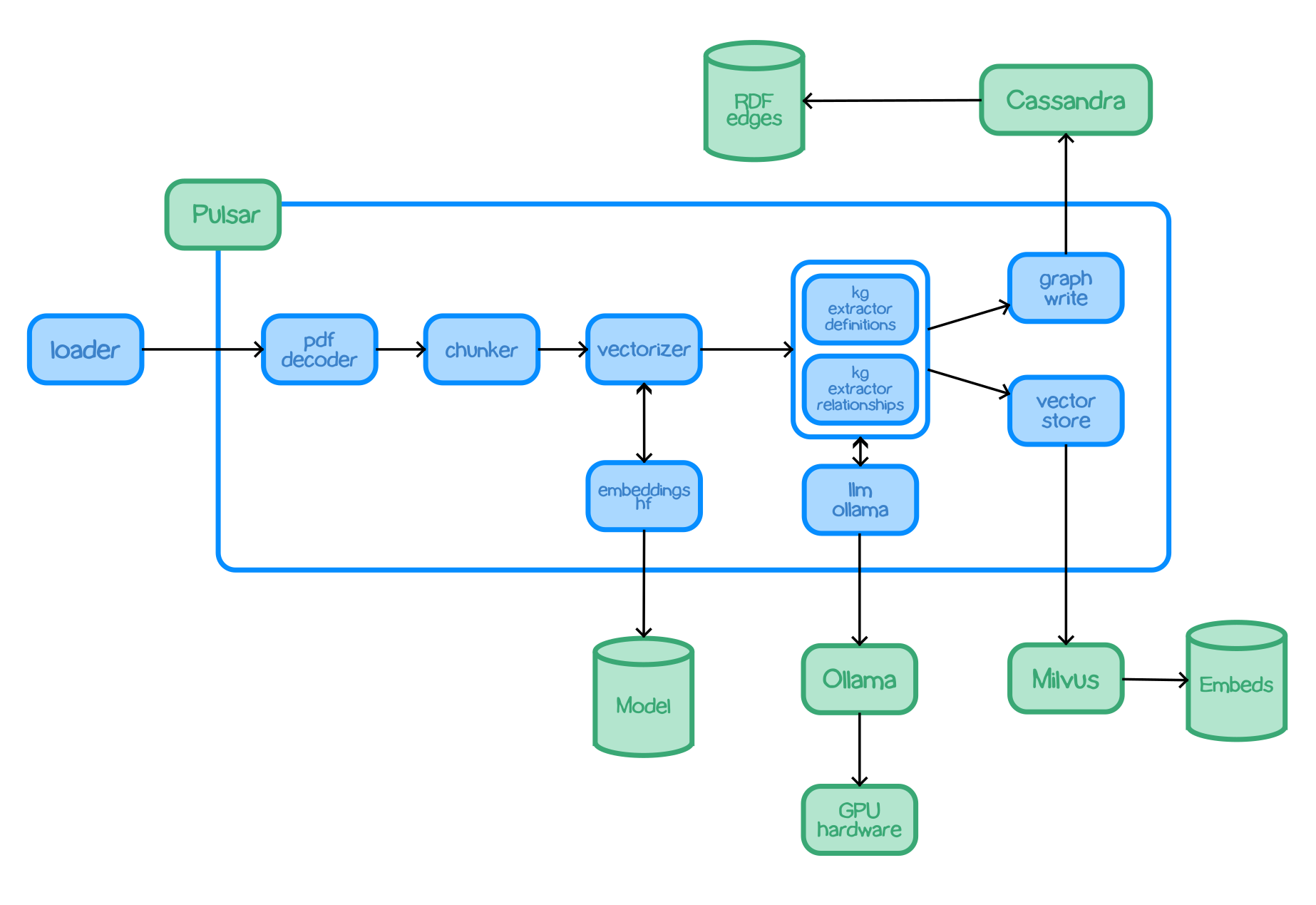
A set of modules are executed which use Apache Pulsar as a pub/sub system. This means that Pulsar provides input the modules and accept output.
Pulsar provides two types of connectivity:
- For processing flows, Pulsar accepts the output of a processing module and queues it for input to the next module.
- For services such as LLMs and embeddings, Pulsar provides a client/server model. A Pulsar queue is used as the input to the service. When processed, the output is delivered to a separate queue so that the caller can collect the data.
All the code is bundled into a single Python package which can be used to use all the functionality. There is also a container image with the package installed which can be used to run everything.
Included modules
chunker-recursive- Accepts text documents and uses LangChain recurse chunking algorithm to produce smaller text chunks.embeddings-hf- A service which analyses text and returns a vector embedding using one of the HuggingFace embeddings models.embeddings-vectorize- Uses an embeddings service to get a vector embedding which is added to the processor payload.graph-rag- A query service which applies a Graph RAG algorithm to provide a response to a text prompt.graph-write-cassandra- Takes knowledge graph edges and writes them to a Cassandra store.kg-extract-definitions- knowledge extractor - examines text and produces graph edges. describing discovered terms and also their defintions. Definitions are derived using the input documents.kg-extract-relationships- knowledge extractor - examines text and produces graph edges describing the relationships between discovered terms.llm-azure-text- An LLM service which uses an Azure serverless endpoint to answer prompts.llm-claude-text- An LLM service which uses Anthropic Claude to answer prompts.llm-ollama-text- An LLM service which uses an Ollama service to answer prompts.llm-vertexai-text- An LLM service which uses VertexAI to answer prompts.loader- Takes a document and loads into the processing pipeline. Used e.g. to add PDF documents.pdf-decoder- Takes a PDF doc and emits text extracted from the document. Text extraction from PDF is not a perfect science as PDF is a printable format. For instance, the wrapping of text between lines in a PDF document is not semantically encoded, so the decoder will see wrapped lines as space-separated.vector-write-milvus- Takes vector-entity mappings and records them in the vector embeddings store.
Getting started
A good starting point is to try to run one of the Docker Compose files. This can be run on Linux or a Macbook (maybe Windows - not tested).
There are 4 docker compose files to get you started with one of the following LLM types:
- VertexAI on Google Cloud
- Claud Anthropic
- Azure serverless endpoint
- An Ollama-hosted LLM for an LLM running on local hardware
Using the Docker Compose you should be able to...
- Run enough components to start a Graph RAG indexing pipeline. This includes stores, LLM interfaces and processing components.
- Check the logs to ensure that things started up correctly
- Load some test data and starting indexing
- Check the graph to see that some data has started to load
- Run a query which uses the vector and graph stores to produce a prompt which is answered using an LLM.
If you get a Graph RAG response to the query, everything is working.
Clone the Github repo
git clone https://github.com/trustgraph-ai/trustgraph trustgraph
cd trustgraph
Docker compose files
There are 4 docker compose files to choose from depending on the LLM you wish to use:
docker-compose-azure.yaml. This is for a serverless AI endpoint hosted on Azure. SetAZURE_TOKENto the secret token andAZURE_ENDPOINTto the endpoint address.docker-compose-claude.yaml. This is for using Anthropic Claude LLM. SetCLAUDE_KEYto the API key.docker-compose-ollama.yaml. This is for a local LLM - gemma2 hosted using Ollama. SetOLLAMA_HOSTto the host running Ollama (e.g.localhostto talk to a locally hosted Ollama.docker-compose-vertexai.yaml. This is for using Google Cloud VertexAI. You need a private.json authentication file for your Google Cloud. Should be at pathvertexai/private.json.
docker-compose-azure.yaml
export AZURE_ENDPOINT=https://ENDPOINT.HOST.GOES.HERE/
export AZURE_TOKEN=TOKEN-GOES-HERE
docker-compose -f docker-compose-azure.yaml up -d
docker-compose-claude.yaml
export CLAUDE_KEY=TOKEN-GOES-HERE
docker-compose -f docker-compose-claude.yaml up -d
docker-compose-ollama.yaml
export OLLAMA_HOST=localhost # Set to hostname of Ollama host
docker-compose -f docker-compose-ollama.yaml up -d
docker-compose-azure.yaml
mkdir -p vertexai
cp {whatever} vertexai/private.json
docker-compose -f docker-compose-vertexai.yaml up -d
On Linux if running SELinux you may need to set the permissions on the VertexAI directory so that the key file can be mounted on a docker container...
chcon -Rt svirt_sandbox_file_t vertexai/
Check things are running
Check that you have a set of containers running...
docker ps
You might want to look at containers which are down to see if any have exited unexpectedly - look at the STATUS field.
docker ps -a
Wait
Before proceeding, you should leave enough time for the system to settle into a working state. On my Macbook, it takes about 30 seconds for Pulsar to start, before which, nothing works.
The system uses Cassandra for a Graph store, takes around 60-70 seconds to achieve a working state. For your first go, I would advise just letting everything settle for a couple of minutes before doing anything else, so that if there are errors you know it's not just that the system is starting up.
Install requirements
python3 -m venv env
. env/bin/activate
pip3 install pulsar-client
pip3 install cassandra-driver
export PYTHON_PATH=.
Load some data
Create a sources directory and get a test file...
mkdir sources
curl -o sources/Challenger-Report-Vol1.pdf https://sma.nasa.gov/SignificantIncidents/assets/rogers_commission_report.pdf
Then load the file...
scripts/loader -f sources/Challenger-Report-Vol1.pdf
You get some output on the screen, if nothing looks like errors (has the ERROR tag) you should be good.
Check logs
Look at the PDF decoder...
docker logs trustgraph-pdf-decoder-1
which should contain some text like...
Decoding 1f7b7055...
Done.
Look at the chunker output...
docker logs trustgraph-chunker-1
You will see similar output, except many entries instead of 1.
Look at the vectorizer output...
docker logs trustgraph-vectorize-1
You will see similar output, except many entries instead of 1.
Look at the LLM output...
docker logs trustgraph-llm-1
You will see output like this...
Handling prompt fa1b98ae-70ef-452b-bcbe-21a867c5e8e2...
Send response...
Done.
Two more log outputs to look at...
docker logs trustgraph-kg-extract-definitions-1
docker logs trustgraph-kg-extract-relationships-1
Definitions output similar to this should be visible
Indexing 1f7b7055-p11-c1...
[
    {
        "entity": "Orbiter",
        "definition": "A spacecraft designed for spaceflight."
    },
    {
        "entity": "flight deck",
        "definition": "The top level of the crew compartment, typically where flight controls are located."
    },
    {
        "entity": "middeck",
        "definition": "The lower level of the crew compartment, used for sleeping, working, and storing equipment."
    }
]
Done.
and Relationships output...
Indexing 1f7b7055-p11-c3...
[
    {
        "subject": "Space Shuttle",
        "predicate": "carry",
        "object": "16 tons of cargo",
        "object-entity": false
    },
    {
        "subject": "friction",
        "predicate": "generated by",
        "object": "atmosphere",
        "object-entity": true
    }
]
Done.
Check graph is loading
scripts/graph-show
You should see some output along the lines of a load of lines like this...
http://trustgraph.ai/e/enterprise http://trustgraph.ai/e/was-carried to altitude and released for a gliding approach and landing at the Mojave Desert test center
http://trustgraph.ai/e/enterprise http://www.w3.org/2000/01/rdf-schema#label Enterprise
http://trustgraph.ai/e/enterprise http://www.w3.org/2004/02/skos/core#definition A prototype space shuttle orbiter used for atmospheric flight testing.
Any output at all is a good sign - indicates the graph is loading.
Query time
With the graph loading, you should be able to see the number of graph edges loaded...
scripts/graph-show | wc -l
You need a good few hundred edges to be loaded for the query to work on that particular document, because it's the point where the indexer has passed the mundane intro parts of the document and got into the interesting parts.
tests/graph/rag
You should give the command at least a minute to run before being concerned. The output should look like this...
Here are 20 facts from the provided knowledge graph about the Space Shuttle disaster:

1. **Space Shuttle Challenger was a Space Shuttle spacecraft.**
2. **The third Spacelab mission was carried by Orbiter Challenger.**
3. **Francis R. Scobee was the Commander of the Challenger crew.**
4. **Earth-to-orbit systems are designed to transport payloads and humans from Earth's surface into orbit.**
5. **The Space Shuttle program involved the Space Shuttle.**
6. **Orbiter Challenger flew on mission 41-B.**
7. **Orbiter Challenger was used on STS-7 and STS-8 missions.**
8. **Columbia completed the orbital test.**
9. **The Space Shuttle flew 24 successful missions.**
10. **One possibility for the Space Shuttle was a winged but unmanned recoverable liquid-fuel vehicle based on the Saturn 5 rocket.**
11. **A Commission was established to investigate the space shuttle Challenger accident.**
12. **Judit h Arlene Resnik was Mission Specialist Two.**
13. **Mission 51-L was originally scheduled for December 1985 but was delayed until January 1986.**
14. **The Corporation's Space Transportation Systems Division was responsible for the design and development of the Space Shuttle Orbiter.**
15. **Michael John Smith was the Pilot of the Challenger crew.**
16. **The Space Shuttle is composed of two recoverable Solid Rocket Boosters.**
17. **The Space Shuttle provides for the broadest possible spectrum of civil/military missions.**
18. **Mission 51-L consisted of placing one satellite in orbit, deploying and retrieving Spartan, and conducting six experiments.**
19. **The Space Shuttle became the focus of NASA's near-term future.**
20. **The Commission focused its attention on safety aspects of future flights.**
If it looks like something isn't working, try following the graph-rag logs:
docker logs -f trustgraph-graph-rag-1
If you get an answer to your query, Graph RAG is working!
If you want to try different queries try modifying the
script you ran at tests/test-graph-rag.
Clearing everything down
docker-compose -f docker-compose-ollama.yaml down
You should also clean out unwanted volumes...
docker volume ls
And delete anything you don't need...
docker volume rm -f <id>
If you want to experiment with your own data set, it would be best to clear down everything created so far and start from scratch.