mirror of
https://github.com/rowboatlabs/rowboat.git
synced 2026-04-25 00:16:29 +02:00
 50bce6c1d6
Previously, the Google OAuth integration used a PKCE-only flow (no client
secret). This switches to a standard authorization code flow where the user
provides both a Client ID and Client Secret from a "Web application" type
OAuth client in Google Cloud Console. PKCE is retained alongside the secret
for defense in depth.

Key changes:

- oauth-client.ts: discoverConfiguration() and createStaticConfiguration()
  now accept an optional clientSecret param. When provided, uses
  ClientSecretPost instead of None() for client authentication.

- oauth-handler.ts: connectProvider() takes a credentials object
  ({clientId, clientSecret}) instead of a bare clientId. Removed eager
  persistence of clientId before flow completion — credentials are now
  only saved after successful token exchange. Renamed resolveClientId to
  resolveClientCredentials to return both values from a single repo read.

- google-client-factory.ts: same resolveClientId → resolveCredentials
  rename. Passes clientSecret to OAuth2Client constructor and
  discoverConfiguration for token refresh.

- repo.ts: added clientSecret to ProviderConnectionSchema. Not exposed
  to renderer via ClientFacingConfigSchema (stays main-process only).

- IPC: added clientSecret to oauth:connect request schema. Handler builds
  a credentials object and passes it through.

- UI: GoogleClientIdModal now collects both Client ID and Client Secret
  (password field). Always shown on connect — no in-memory credential
  caching. Renamed google-client-id-store to google-credentials-store
  with a unified {clientId, clientSecret} object.

- google-setup.md: updated to instruct users to create a "Web application"
  type OAuth client (instead of UWP), add the localhost redirect URI, and
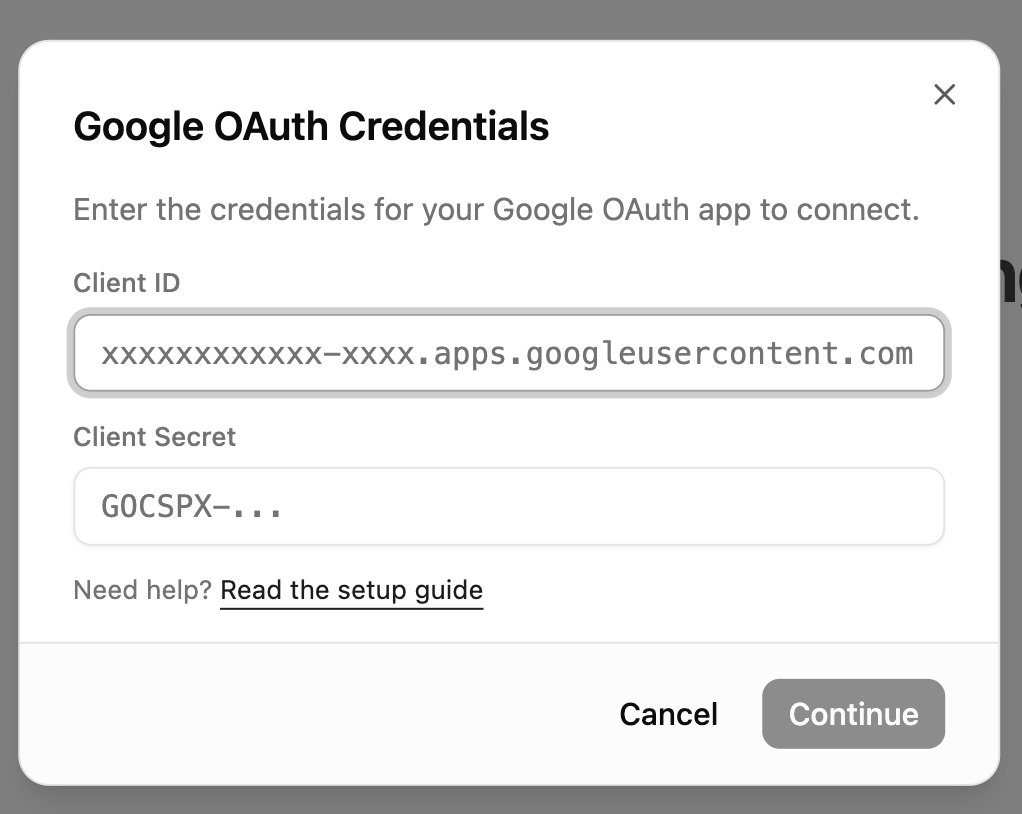
  copy both Client ID and Client Secret. Added credentials modal screenshot.

Co-Authored-By: Claude Opus 4.6 (1M context) <noreply@anthropic.com>
156 lines
3.9 KiB
Markdown
156 lines
3.9 KiB
Markdown
# Connecting Google to Rowboat
|
||
|
||
Rowboat requires Google OAuth credentials (Client ID and Client Secret) to connect to Gmail, Calendar, and Drive. Follow the steps below to generate them.
|
||
|
||
---
|
||
|
||
## 1️⃣ Open Google Cloud Console
|
||
|
||
Go to:
|
||
|
||
https://console.cloud.google.com/
|
||
|
||
Make sure you're logged into the Google account you want to use.
|
||
|
||
---
|
||
|
||
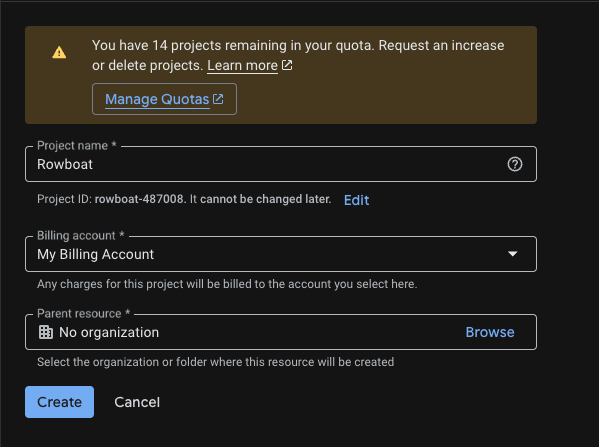
## 2️⃣ Create a New Project
|
||
|
||
Go to:
|
||
|
||
https://console.cloud.google.com/projectcreate
|
||
|
||
- Click **Create Project**
|
||
- Give it a name (e.g. `Rowboat Integration`)
|
||
- Click **Create**
|
||
|
||
Once created, make sure the new project is selected in the top project dropdown.
|
||
|
||
|
||
|
||
---
|
||
|
||
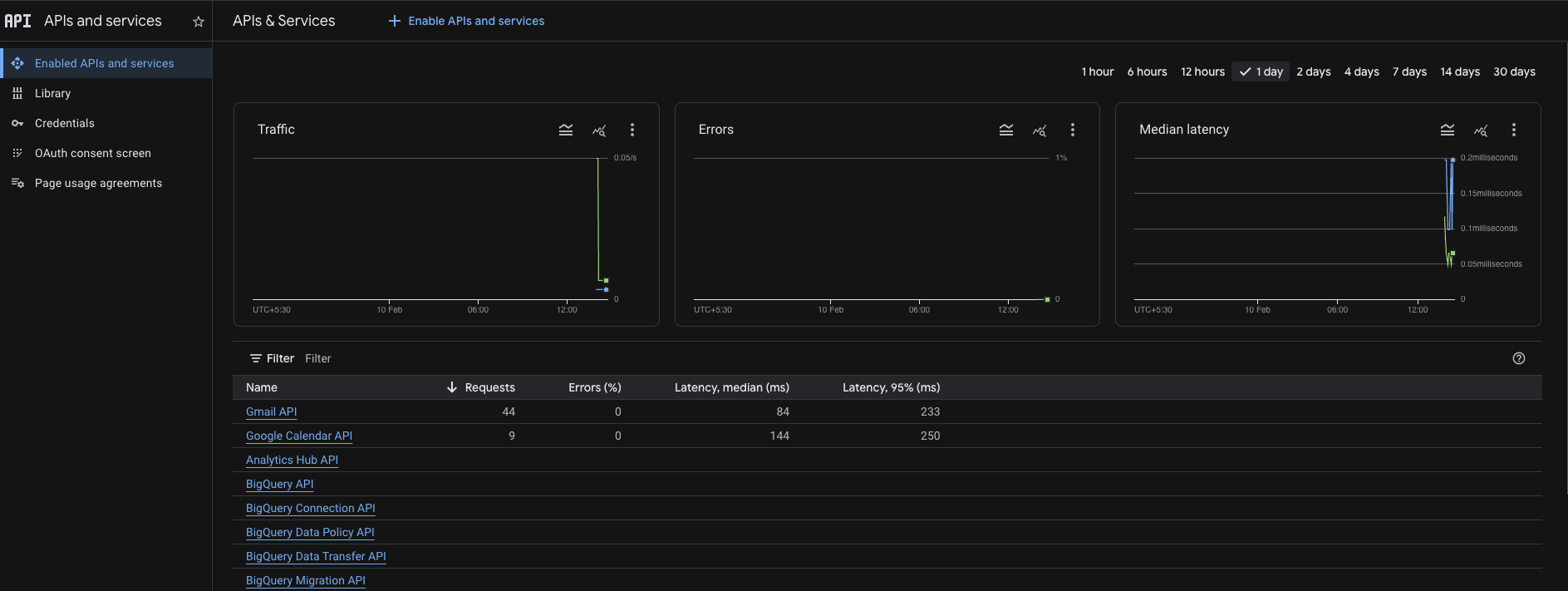
## 3️⃣ Enable Required APIs
|
||
|
||
Enable the following APIs for your project:
|
||
|
||
- Gmail API
|
||
|
||
https://console.cloud.google.com/apis/api/gmail.googleapis.com
|
||
|
||
- Google Calendar API
|
||
|
||
https://console.cloud.google.com/apis/api/calendar-json.googleapis.com
|
||
|
||
- Google Drive API
|
||
|
||
https://console.cloud.google.com/apis/api/drive.googleapis.com
|
||
|
||
|
||
For each API:
|
||
|
||
- Click **Enable**
|
||
|
||
|
||
|
||
|
||
---
|
||
|
||
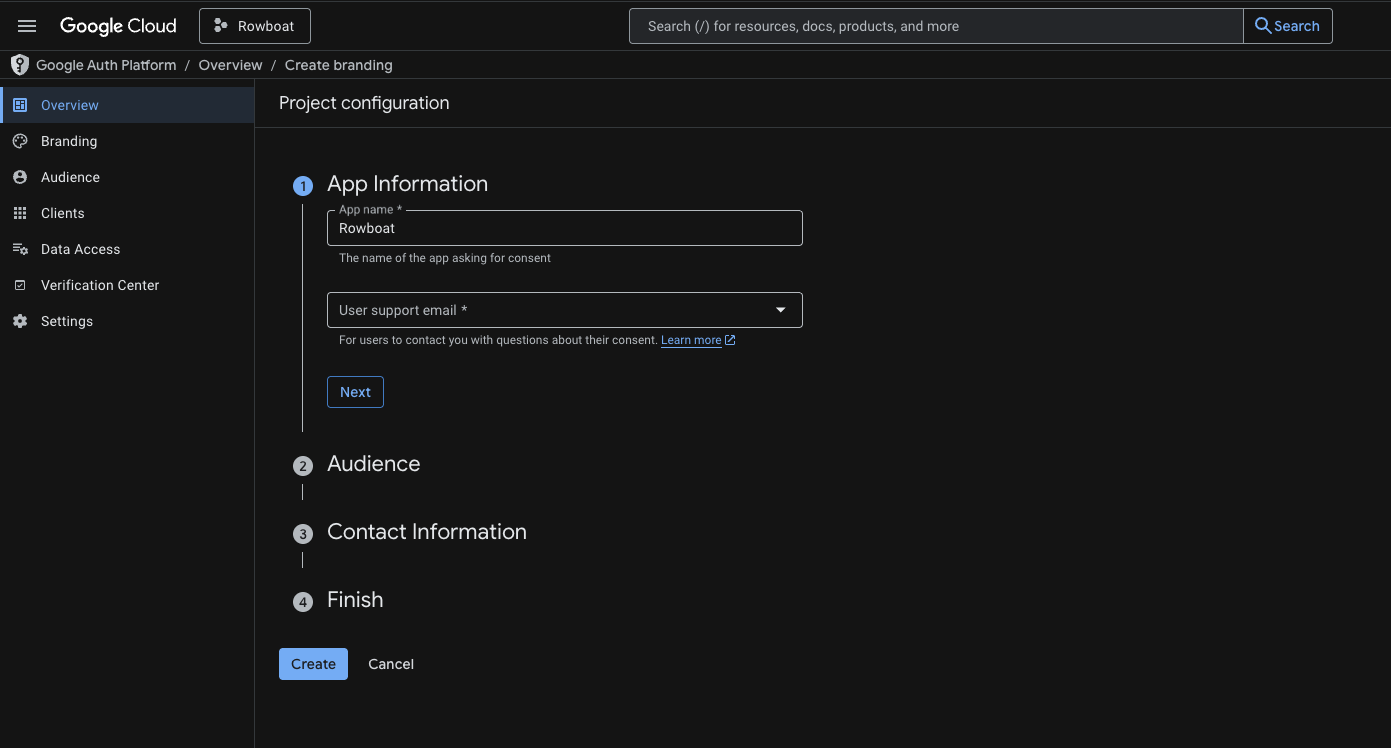
## 4️⃣ Configure OAuth Consent Screen
|
||
|
||
Go to:
|
||
|
||
https://console.cloud.google.com/auth/branding
|
||
|
||
### App Information
|
||
|
||
- App name: (e.g. `Rowboat`)
|
||
- User support email: Your email
|
||
|
||
### Audience
|
||
|
||
- Choose **External**
|
||
|
||
### Contact Information
|
||
|
||
- Add your email address
|
||
|
||
Click **Save and Continue** through the remaining steps.
|
||
|
||
You do NOT need to publish the app — keeping it in **Testing** mode is fine.
|
||
|
||
|
||
|
||
---
|
||
|
||
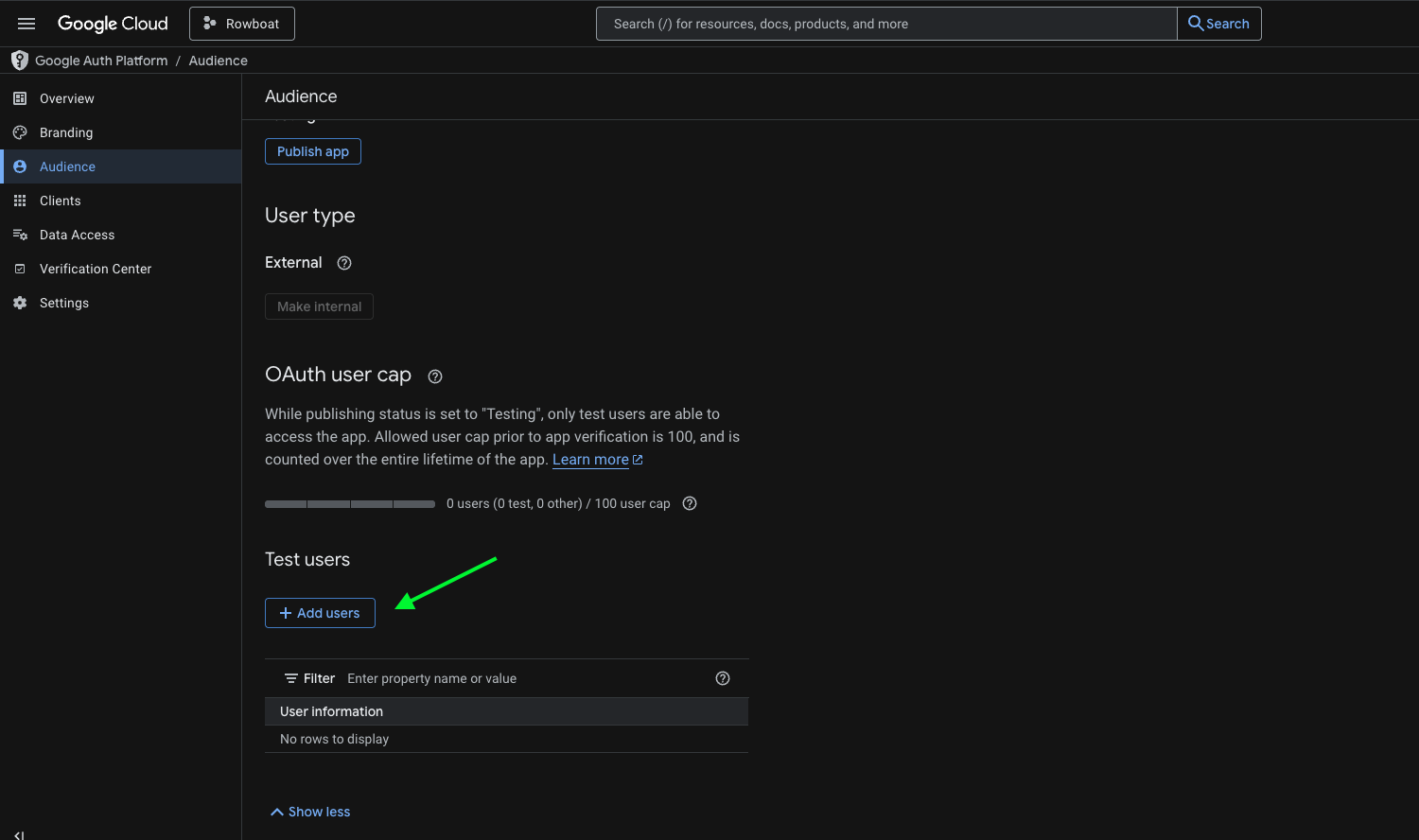
## 5️⃣ Add Test Users
|
||
|
||
If your app is in Testing mode, you must add users manually.
|
||
|
||
Go to:
|
||
|
||
https://console.cloud.google.com/auth/audience
|
||
|
||
Under **Test Users**:
|
||
|
||
- Click **Add Users**
|
||
- Add the email address you plan to connect with Rowboat
|
||
|
||
Save changes.
|
||
|
||
|
||
|
||
---
|
||
|
||
## 6️⃣ Create OAuth Client ID
|
||
|
||
Go to:
|
||
|
||
https://console.cloud.google.com/auth/clients
|
||
|
||
Click **Create Credentials → OAuth Client ID**
|
||
|
||
### Application Type
|
||
|
||
Select:
|
||
|
||
**Web application**
|
||
|
||
- Name it anything (e.g. `Rowboat Desktop`)
|
||
|
||
### Authorized redirect URIs
|
||
|
||
Add the following redirect URI:
|
||
|
||
- `http://localhost:8080/oauth/callback`
|
||
|
||
Use this exactly: no trailing slash, port **8080**. This must match what the app uses for the OAuth callback.
|
||
|
||
Click **Create**.
|
||
|
||
---
|
||
|
||
## 7️⃣ Copy the Client ID and Client Secret
|
||
|
||
After creation, Google will show:
|
||
|
||
- **Client ID**
|
||
- **Client Secret**
|
||
|
||
Copy **both values** and paste them into Rowboat when prompted.
|
||
|
||
|
||
|
||
---
|
||
|
||
## Troubleshooting
|
||
|
||
**Error after "Authorization Successful"**
|
||
|
||
If the browser shows "Authorization Successful" but the app then shows an error (e.g. "invalid response encountered" or "response parameter \"iss\" (issuer) missing"):
|
||
|
||
1. **Check the app logs** (e.g. terminal or dev tools) for the full error. The message there will often indicate the cause (e.g. redirect URI mismatch, missing parameter).
|
||
2. **Verify redirect URI in Google Cloud Console**: Open [Credentials → your OAuth 2.0 Client ID](https://console.cloud.google.com/auth/clients). Ensure `http://localhost:8080/oauth/callback` is listed under **Authorized redirect URIs**.
|
||
3. **Client type**: Make sure you selected **Web application** as the application type. Other types (Desktop, UWP) may not provide a client secret or may handle redirect URIs differently.
|
||
|
||
---
|